Table of Contents:
- How to use Bomee
- How to pull up an existing customers barcode
- How to confirm successful uploads and hide/unhide ultrasounds
- How to use BabyView AI
- Scanned Incorrect Barcode (Barcode Correction)
- Missing Ultrasound upload
- Request more barcodes/brochures/flyers (inventory)
- Important Information - Please Read!
- How to contact support (troubleshooting)
Check out the video below to learn how to use Bomee(Momitalk)!
Note:
This video features our former brand name, Momitalk.
As of January 19, 2026, Momitalk has been rebranded as Bomee.
The video content remains accurate, and an updated version
reflecting the Bomee brand will be released soon.
Thank you for your understanding.
Written out instructions on how to use Bomee please see
Important: Once a barcode is added to a customers Bomee profile it cannot be added to another. Please inform your customer that whomever is managing the pregnancy should add the barcode. If they would like to share access to that barcode after adding it please guide the customer through our "Family Invite" feature by using the steps shown here - How to use Family Invite (Share Barcode Access to other Bomee users)
How to pull up barcode for existing customers?
For returning Bomee application users have them open up their Bomee app then you can use the visual below to see how to scan their existing barcode to start a new ultrasound session.
-3.jpg?width=329&height=357&name=photo-output%20(8)-3.jpg)
For more information on this feature please see
How to see a users existing barcode
How to confirm uploads, hide/unhide photos after a session?

You can manage uploads and ultrasound visibility by using our admin portal!
Important: While using the admin portal isn't required it is "highly" recommended you utilize to have full visibility on successful uploads and ultrasound management.
Accessing the Admin Portal
To access the Admin Portal, use the following credentials:
URL: https://admin.bomee.io
ID & PIN: Provided via separate email during your orientation
The link here will show you how to use the admin portal
Admin portal works the best on a laptop/desktop computer via the Google Chrome Browser, for first time setup please use Google Chrome.
How to use BabyView AI
Important: BabyView AI is a brand new feature within Bomee so you might not be activated with this feature yet. Please email your account manager or support at us_help@humanscape.io to learn more about this exciting new service!

Please see the article below to learn how to use BabyView AI
Scanned the wrong barcode during the session and need to correct the barcode/transfer?
No worries at all, we can correct that for you!
See the article below for more details
How to transfer ultrasound to new barcode
Don't see your Ultrasound session upload under the Admin Portal?
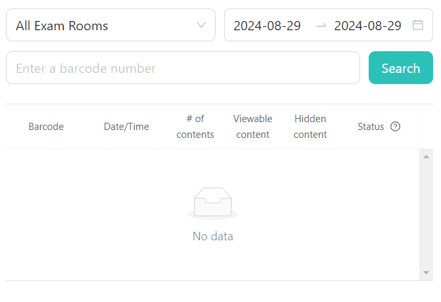
Click below to learn how to resolve
How to locate a missing Ultrasound
How to request more Barcode/Brochures/Flyers when getting low.
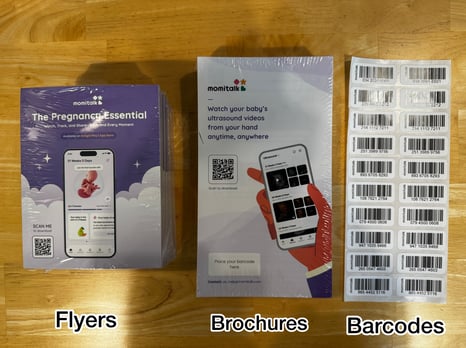
You can submit a request for inventory using the form below
See this article below for more information on inventory request and alternative request options
Important: Shipping times vary based on your location and typically range from 3 to 7 business days. Orders are processed Monday through Thursday, excluding federal holidays.
To ensure you receive your shipment on time, we recommend placing your order as early as possible (prior to being close to running out) to avoid any interruptions in supply.
Important Information - Please Read!
-
Keep Bomee powered on – This allows remote troubleshooting if issues occur.
-
Do not hold down the power button – Pressing it once will safely power Bomee on/off. Holding it forces shutdown, which can cause issues.
-
Do not unplug cables without noting their positions – Proper setup ensures correct Bomee operation.
-
Moving offices or changing ultrasound machines? – Email us at us_help@humanscape.io before unplugging for guidance on staying connected.
-
Changing internet providers or settings? – Bomee works offline but won’t upload until reconnected. Follow this guide to update your internet settings.
-
Feature requests? – Send them to us_help@humanscape.io; we’d love your feedback!
- Download our Bomee Quick Operation Guide below - Perfect for setting up near your ultrasound or front desk!
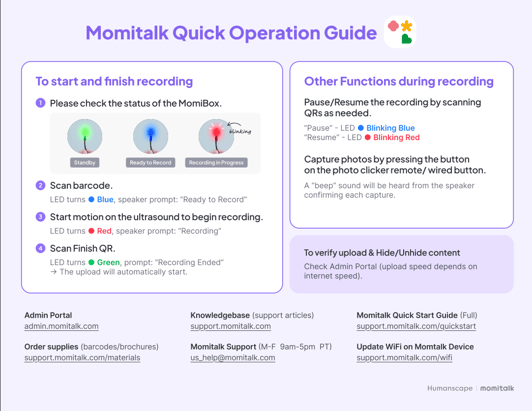
Click below to download
Quick Operation Guide Print Out
How to contact support for Bomee?
Experiencing issues? – First, check our helpful Bomee troubleshooting guides.
Still need help? – Email our support team at us_help@humanscape.io.
Support Hours:
Monday–Friday, 9 AM to 5 PM PST
Weekend: Limited to emergency email support